I don’t often work on a standalone monitor at home these days, but the Odyssey G8 G80HF has been a pleasant reprieve from my laptop life.
Last year, I tested the Odyssey 3D G90XF, Samsung’s original 3D external monitor, which gave me my first taste of a peripheral at home in some time. This year, I got another month with the Odyssey G8 G80HF, the brand’s second-generation 5K monitor. At the end of these 30 days, I have to say, I will be sad to see it go.

Display
The 27-inch Odyssey G8 G80HF debuted this spring, along with several other peripherals, including the 32-inch Odyssey G8 G80HS, which features a 6K display. The G80HF is just one step down with a 5K resolution, but with similar specifications otherwise. It features a widescreen fast IPS panel with a178-degree viewing angle, 218 PPI pixel density, HDR10+, and a 1 ms response time (GtG).
The G80HF supports Dual Mode, which allows users to select between two resolution settings and refresh rates—either the default 5K at 180Hz or QHD at 360Hz. The monitor features a button on its rear that allows you to switch between modes, as well as access all of the other settings and turn the peripheral on or off. It does not ship with any additional control accessories.


The monitor is compatible with gaming technologies, such as NVIDIA G-Sync and AMD FreeSync Premium, that support ultra-smooth gameplay.
One thing I can say about this monitor: it is bright. I don’t have the best eyesight naturally, but in front of this 5K monitor, I feel like I have 20/20 vision. But also bright enough that it felt uncomfortable. If connecting to a laptop, I would recommend adjusting the brightness on your main device to a more comfortable setting before connecting to the monitor. While toggling between the modes, the display of my laptop turned off with Dual Mode off and was on with Dual Mode set.
However, this depended on the laptop I used, as I tested multiple laptops. Perhaps you won’t have this issue, especially with a newer driver. Users can also adjust the display brightness within the settings, as described above. The brightness was set to 23 by default. Other display settings include contrast, sharpness, color, and tint.
Design and ports
The Odyssey G8 G80HF is very simple in terms of design. It comes in a black colorway with the Samsung Odyssey logo on its left side. Setup is very simple. The monitor snaps into the stand but can otherwise be used for other mounting purposes. A height-adjustable Ergonomic Stand pivots, tilts, and swivels for the perfect view. I had it at the highest height for most of my testing, and when I realized that “height-adjustable” meant “down,” the experience was even more comfortable.


Ports on the monitor include Headphone OUT, HDMI in 1, HDMI in 2, DP IN, USB Type-A Downstream/SERVICE, USB Type-B Upstream, and USB Type-A Downstream. The monitor comes with a power cable, HDMI cable, and DP cable. I used the HDMI cable to connect to my laptop.
I had to tinker with my productivity laptop to project onto the monitor initially, but subsequent connections went smoothly. My gaming laptop was fairly plug-and-play and connected with no issues with every use. Again, my assumption is this might have to do with age and compatibility. My productivity driver is on the older side, and my gaming laptop is a bit newer.
To complete the setup, I dug out some handy dandy gaming headphones, which I initially thought would connect to the monitor, but I ultimately connected them directly to my laptop. I thought I would have accessory options to test with the headphone port, but my headphones are USB-C and USB-A, the latter of which worked best for my laptop.
Productivity
I spent a good chunk of my time using the Odyssey G8 G80HF for productivity purposes, including writing this review. Having widescreen access to view all of my information, versus hunching over a laptop, allowed me to take advantage of different aspects of Windows that I don’t use as often in a smaller configuration.
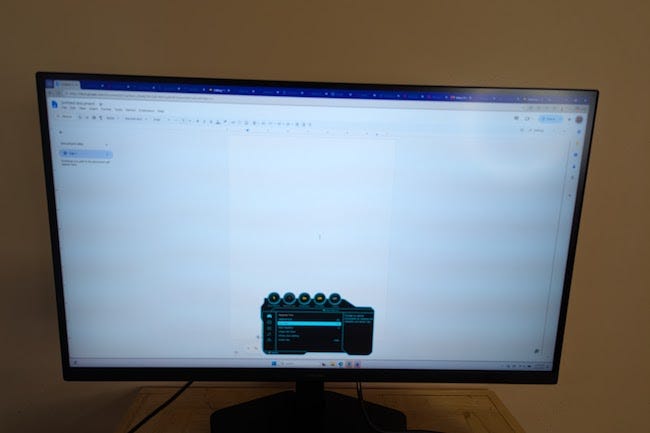
I really took advantage of Windows’ split-screen app function to have my word processor and Notepad open at the same time. This worked best with Dual Mode off. With the resolution high, apps and text were set small on the screen, and I had to zoom in to about 150% to be able to properly see and type as normal. With Dual Mode on, the display is in a QHD resolution, and you can view most pages comfortably at 90 to 100% in widescreen. I spent the early half of my productivity testing with Dual Mode off and the latter half with it on.
At one point, as a joke, I moved the monitor to the side table in my living room and lay back on my couch to read my morning news. I took to this setup a lot better than I expected and made it my workstation for several days.
The ergonomic swivel on the Odyssey G8 G80HF really came in handy. I tilted the screen forward and adjusted it to the right. With my chaise lounger as my mouse pad and a few throw pillows to prop me and my keyboard up, I spent several days caffeinated and productive.
Gaming and media
The Odyssey G8 G80HF is described as a hybrid work-from-home monitor, particularly for creative work and gaming. In addition to my writing work, I did some light photo editing and also tested a few games with different systems. I played Halo on the PlayStation 5 and The First Berserker Khazan on my gaming laptop.
Samsung suggests, as per its Dual Mode settings, that the 5K at 180Hz setting is best for RPG and open-world games, and the QHD at 360Hz setting is best for FPS, competitive games, and racing games. Halo is a first-person shooter game (FPS), and The First Berserker Khazan is a role-playing game (RPG).


My gaming laptop automatically set to Dual Mode upon being connected to the monitor, while my productivity laptop was set to Dual Mode off by default. This was apparent in other functions I tested, but especially in gaming. Halo, the game more suitable for the Dual Mode settings, displayed especially vibrant colors and smoother rendering. The First Berserker Khazan looked solid on the monitor but was slightly more muted in color overall.
I also tested other media platforms, such as YouTube and Disney+, which varied in their own resolution settings. YouTube standard delivered a fairly sharp playback for being only 720p resolution, albeit a bit fuzzy around the edges of the subjects speaking. Disney+ was set to stream up to 4K UHD resolution and provided clear and color-accurate quality, with the exception of minor Wi-Fi hiccups. The widescreen setup of the display definitely gave a movie theater feel at home.
Price and availability
The Samsung Odyssey G8 G80HF is currently available, selling for $949.99 at Samsung.com. Consumers can find discounts at retailers, including Amazon.
Verdict
Overall, I had a solid experience with the Samsung Odyssey G8 G80HF. The widescreen and the display quality were a plus in my book across the board. Shifting between my different tasks, from work to gaming to relaxing with a show or YouTube video, it was easy to adjust and feel comfortable with the peripheral. My biggest qualm is that there don’t appear to be any built-in speakers on the monitor. I remedied this with gaming headphones I happened to have on hand; however, consumers should be prepared to invest in an external sound system and/or a solid pair of headphones of their own. I suppose consumers are paying for the 5K technology, which is still new in Samsung’s lineup. The brand has monitors with higher specs and higher price tags in comparison.
Some alternatives to consider include the Alienware AW3423DWF, a 34-inch 4K monitor with Dual Mode that sells for $799.99, and the Dell UltraSharp U2723QE 27-inch 4K monitor that sells for $549.99.